
Click to Chat helps us to track WhatsApp interactions as Google Ads Conversions, making it easier to measure campaign performance and user engagement.
How it Works:
When a user clicks on the WhatsApp button, the plugin triggers a Google Ads Conversion event using the provided Conversion ID and Conversion Label.
Enabling Google Ads Conversion:
Navigate to: Click to Chat → Other Settings – Analytics – Google Ads Conversion
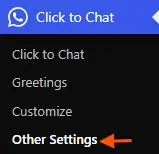
- Enable the “Google Ads Conversion” option.
Configure Google Ads Conversion Tracking and connect it with the Click to Chat plugin to measure leads generated from ad clicks
Step 1: Create a Google Ads Conversion Action
- Log in to your Google Ads account.
- Complete the required account setup details if not already done.
- Navigate to: Goals → Summary
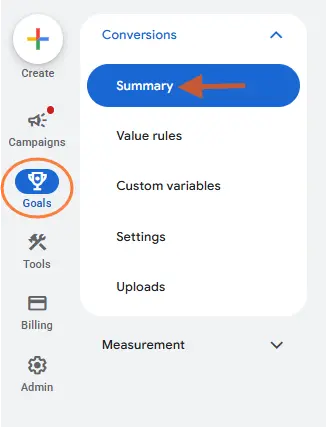
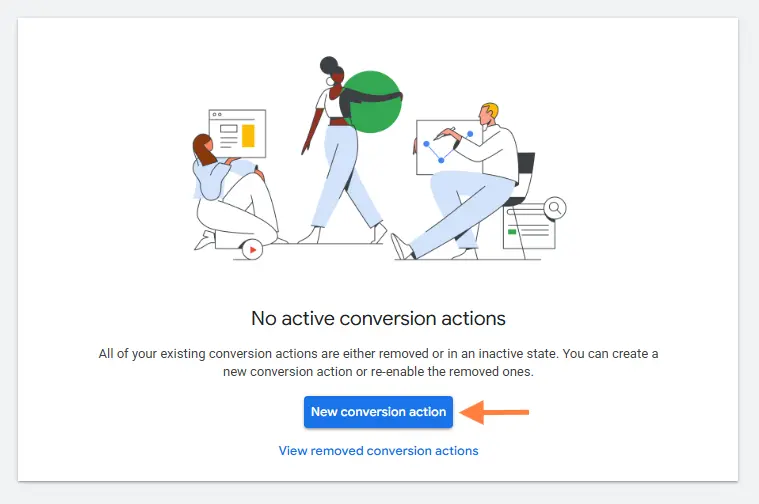
- Click Create Conversion Action.
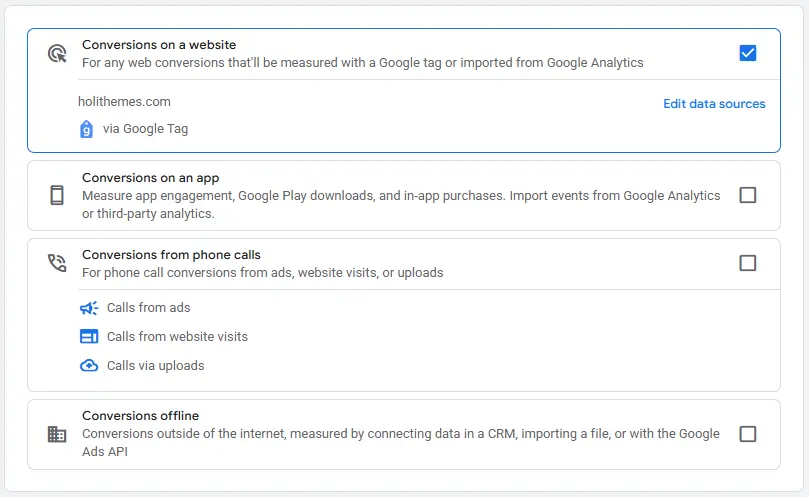
- Select Website as the conversion source.
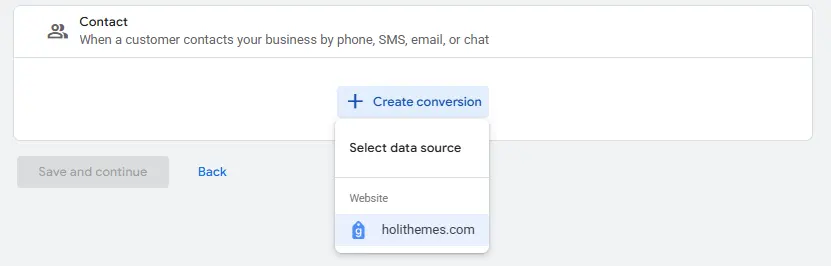
- Under Conversion Category, choose Contact.
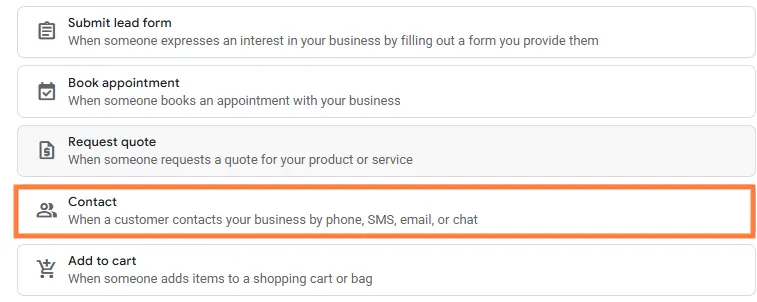
- Click Create and Continue.
Configure Conversion Settings
- Enter your website URL.
- Select Add a conversion action manually.
- Click Save and Continue.
Get the Event Snippet Code
Under Set up your Google tag and event tags:
- Locate the Set up Google tag section.
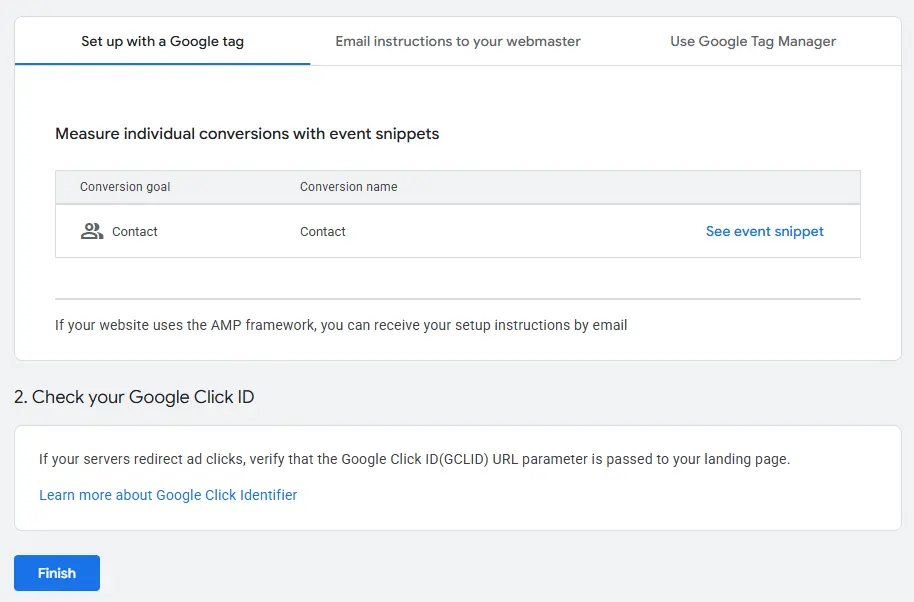
- Click See event snippet.
- Choose Click as the interaction type (to measure button clicks).
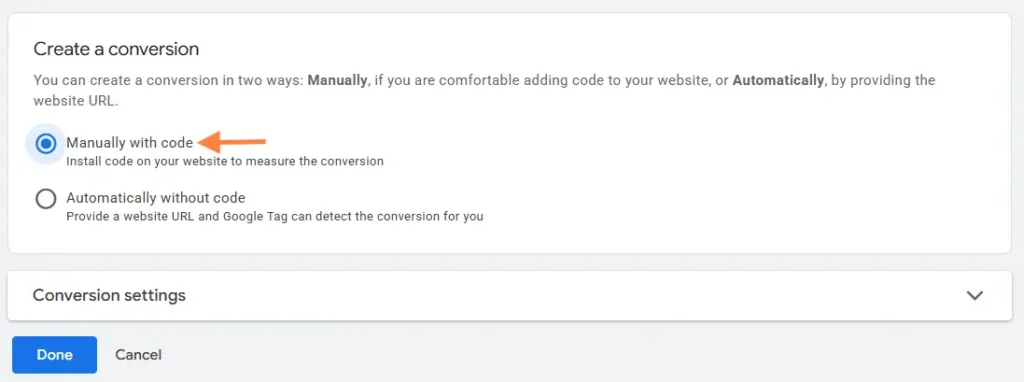
- Copy the generated event snippet code.
- Click Close after copying the code.
If needed, you can also use the Email instructions to webmaster option to send the setup details.
Get Conversion ID and Label (Using Google Tag Manager Tab)
- Navigate to the Use Google Tag Manager tab.
- Copy the:
- Conversion ID
- Conversion Label
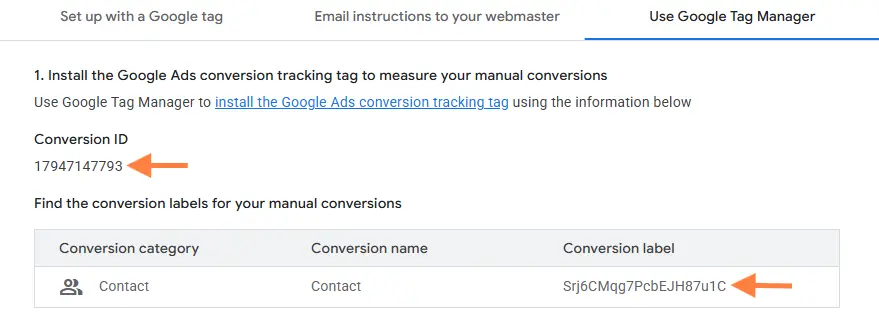
- Add Conversion ID and Conversion Label (we can find them in our Google Ads account under the Tag Setup section).
Add Conversion Details in Click to Chat Plugin
- Go to your WordPress Admin Dashboard.
- Open Click to Chat → Admin Settings.
- Paste the Conversion ID and Conversion Label into the respective fields and save the changes
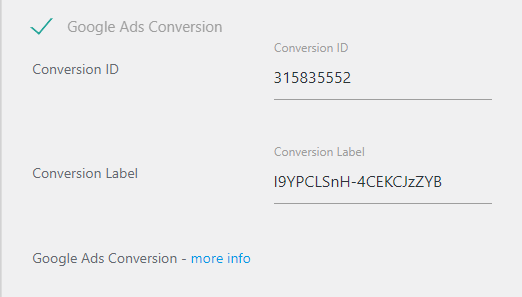
Note: Ensure we have the Global Site Tag (gtag.js) installed on our website for conversions to be tracked properly.
Verify Conversion Data
After completing the setup:
- You will be redirected to the Conversion Summary Page.
- Here, you can track conversions such as:
- Leads
- Contact form submissions
- Click-based interactions from ads
⏳ Note: Conversion data may take up to 24 hours to appear in Google Ads reports.
Using Click to Chat’s Google Ads Conversion integration, we can easily monitor the effectiveness of our ads and optimize our marketing strategies based on real user actions.
Additional Resources
Create Event from Google Tag Manager using dataLayer – send to Google analytics – Click to Chat
Setting up Meta Pixel Event Tracking with ‘Click to Chat’
Event Tracking for WhatsApp Button with Click to Chat Plugin in Google Analytics

Thank you! This feature is very useful.
Great, thanks really helpful
Hello, this feature is so useful and can be better if possible to add a tag of google ads, like conversion Id and label of conversion.
Hi David
Thank you so much for the message. This feature is available in PRO Version.
Have a nice day!
Great feature as mentioned, it woudl be great to add the conversion Id and label of conversion.
Hi @jorge,
This feature is available in PRO Version.
Thank you so much for the message.
Have a nice day!
Hi,
can you give me a step by step to implement it. please?
I have not succeeded.
Hi,
Thank you so much for the message. we will work on creating videos explanation.
Have a nice day!
Hello,
as “conversion” do you mean: click on whatsapp or message sent by the user?
Thanks
Hi,
conversion counts when user Click on WhatsApp.
Thank you
Thanks for your explanation. Is possible to enable enhanced tracking conversion and get the phone number?
Sorry, plugin can’t automatically get your vistors phone number.